
All posts by Jesus Castello
SQLite basics
SQLite is a serverless relational database. It is used notably by modern browsers like Chrome and Firefox to store data like history, cookies, saved passwords…
We are going to see how you can get around in the command line interface. To work with a database file you can start the program in this way:
|
1 2 |
sqlite3 data.db sqlite> |
What you get is a prompt similar to the mysql client. Now let’s see what tables are available:
|
1 2 |
sqlite> .tables machines services |
If we want to see column names we can use the .schema command:
|
1 2 |
sqlite> .schema machines CREATE TABLE machines (id integer PRIMARY KEY AUTOINCREMENT, ip varchar(20), host varchar(100), os varchar(50)); |
To customize the output format of query results you can use the .mode and .headers options, for example:
|
1 2 3 4 5 6 7 8 |
sqlite> .headers on sqlite> .mode column sqlite> select * from machines; id ip host os ---------- ------------ ---------- --------------------------------- 233 42.137.222.1 Cisco 827H ADSL router (IOS 12.2) 234 42.137.222.2 Cisco 1700-series router 235 42.137.222.3 Cisco 870 router or 2960 switch |
You can add these options to .sqliterc for permanent effect. Finally, if you want to exit just type .exit
-> Something annoying about sqlite is that the ALTER TABLE command is very limited. You can only rename a table or add a column, but you can’t modify or delete columns after they have been created. There is an official work-around for this, explained here: https://www.sqlite.org/lang_altertable.html
Using SQLite in Ruby: https://rubygems.org/gems/sqlite3
You might also like:
Redis: the blazing fast datastore
Java: Regular Expressions
Regular expressions, regexp for short, allow us to build expressions for pattern matching. If you aren’t familiar with them you may want to check out some resources here.
In Java you can leverage the power of regexp using the pattern and matcher classes, you can import java.util.regex.* to make them available to your program. Let’s see some examples:
|
1 2 3 |
public static boolean basicRegexp(String pattern, String str) { return Pattern.matches(pattern, str); } |
This is a simple method that takes in a pattern and a string to compare against and returns either true or false. We define patterns as strings, for example if we want to see if a word starts with any character but ends with “ello” we would call our method like this:
|
1 |
boolean result = basicRegexp(".ello","hello"); |
Which in this case will return true, as an alternative you could also use the String method startsWith()
Example of java regular expressions
Now lets say we want to find all words that match a certain pattern in a piece of text, rather than just comparing against a single word.
|
1 2 3 4 5 6 7 8 |
private static void findWithPattern(String regexp, String str) { Pattern pattern = Pattern.compile(regexp); Matcher matcher = pattern.matcher(str); while (matcher.find()) { System.out.println(matcher.group()); } } |
This method is a little more involved than the first one. First we need to compile our regexp and get a pattern object then we call the matcher method on our pattern object with the string we want to match against, and what we get is a matcher object which contains the results. Finally we loop over the results and print them to the screen.
Here is a possible call to our findWithPattern method.
|
1 |
findWithPattern("h\w+","hello halo hulo"); |
For more details check the official documentation.
Socat: A very powerful networking tool
Welcome to this socat tutorial. Socat is a network utility similar to netcat. Socat supports ipv6 and ssl and is available for both windows and linux. The first thing you will notice with this tool is that it has a different syntax on what you are used to with netcat or other standard unix tools.
|
1 |
socat [options] <address> <address> |
You have to provide both addresses in order for it to work, now these addresses look like this:
|
1 |
protocol:ip:port |
Let’s get started with some examples. First I want to show you how you can get the same functionality as with netcat.
|
1 2 |
nc localhost 80 socat - TCP4:localhost:80 OR socat STDIN TCP4:localhost:80 |
|
1 2 |
nc -lp localhost 700 socat TCP4-LISTEN:700 STDOUT |
|
1 2 |
nc -lp localhost 700 -e /bin/bash socat TCP4-LISTEN:700 EXEC:/bin/bash |
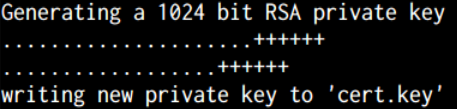
Now we can go beyond netcat with some ssl examples, but first we need to generate a ssl cert for the server.
Generate a SSL cert
openssl req -new -x509 -days 365 -nodes -out cert.pem -keyout cert.key
SSL server
|
1 |
socat OPENSSL-LISTEN:443,cert=/cert.pem - |
SSL client
|
1 |
socat - OPENSSL:localhost:443 |
Both addresses don’t have to use the same protocol, so you can do “ssl server -> non-ssl server”. You should also check out the options that you can apply, for example you can use fork to tell socat to listen and handle multiple clients.
|
1 |
socat TCP4-LISTEN:5000,fork OPENSSL:localhost:443 |
Finally if you are tunneling a connection between servers using socat you can use the -v option to print all the traffic to stdout.
I hope you enjoyed this quick socat tutorial. If you want to learn more, check out the socat man page, section “ADDRESS TYPES” or the online documentation.
Ruby tracing – A useful debugging tool
Tracing is following all the steps taken by a program, specially function calls/methods, this can be a useful debugging tool when tracking down some problems with your application.
In Ruby we have a tracing tool built-in, we can invoke it with ruby -rtracer script.rb but as you can see here it’s not easy to tell what’s going on:
|
1 2 3 4 5 6 |
#0:test.rb:2::-: def another_call #0:test.rb:7::-: def more_depth #0:test.rb:12::-: def trace_testing(*argv) #0:test.rb:17::-: 3.times do |t| #0:test.rb:18::-: puts trace_testing('abcd',12345 * t, [1,2,3],:test => 'A') #0:test.rb:12:Object:>: def trace_testing(*argv) |
What we can do is implement our own tracer and format the output to our liking, for this Ruby provides us with the set_trace_func method, we setup our tracing by giving this method a proc that will be called for each tracing event.
|
1 2 3 |
set_trace_func proc { |event, file, line, id, binding, classname| printf "%8s %s:%-2d %10s %8sn", event, file, line, id, classname } |
Here is a summary of what each argument means:
- event, this is whats happening in this step of execution, it can be one of the following: “c-return”, “end”, “return”, “c-call”, “line”, “call”, “class”
- file, this is the file where the event happens
- line, the line number
- id, this is the method name we are in
- binding, the current scope where we are running
- classname, this one doesn’t need much explanation

I have made a gem that implements this and focuses on ruby method calls:
|
1 |
gem install simple-tracer |
You can call it with just “st my_script.rb” and this is how it looks:

Wireshark: Auto-start capturing
Most of the time when you open wireshark you will want to start capturing right away. You can pass some flags to wireshark so it starts capturing as soon as it opens. The option for this is -k but you also need to choose and interface to capture from, in Linux you can see your interfaces with ifconfig or ip show addr (shortcut: ip a) and edit your menu entry or panel launcher like this:

And with that you should be good to go. For windows interface names are a bit more involved, you can list them using wireshark -D, in my case it looks like this:

The part that you need has this format: DeviceNPF_{0F09D25E-33C7-493D-9CB9-8E9B3433439B}
So now you can modify your shortcut:
"C:\Program FilesWiresharkwireshark.exe" -k -i "DeviceNPF_{0F09D25E-33C7-493D-9CB9-8E9B3433439B}"
Finally, remember that when you update wireshark the shortcut will be removed, so you may want to rename it to avoid this.